Rendering With the Agent
Most AI rendering tools ask you to describe what you want in a text box and hope the model understands. Arqina's control panel takes a different approach: you pick from structured options, and the app assembles a prompt behind the scenes. That works well, but it applies the same recipe to every project. A massing study and a finished facade study get treated alike.
The agent is the alternative. It is a conversation that ends in a render, and the prompt it sends is written for your specific image and your specific intent rather than assembled from a template.
Opening it
Click Agent in the top right of any project canvas. It shares the right-hand rail with the control panel, so whichever you opened last is the one you see. Close it and your selection-driven control panel comes back exactly as before.
The conversation is saved per project. Leave, come back next week, and it picks up where you left off. New chat clears it and starts fresh.
Giving it something to look at
The agent only sees what you hand it. It does not browse your project, read your other renders, or look at anything you have not attached. That is deliberate: it keeps the conversation predictable and means nothing leaves your canvas without you choosing it.
There are two ways to attach an image:
- Add selection takes whatever image nodes you have selected on the canvas.
- The image button uploads from your computer. The upload also lands on your canvas as a normal image, so it keeps its place in your project rather than disappearing into a chat.
You can attach up to four. The first one is the image being rendered; the rest act as references for style, material, or atmosphere. They stay attached across the whole conversation, so you can talk about the same image for ten messages without re-attaching it. Remove one with the x on its thumbnail.
Having the conversation
Describe what you are after in plain language. You do not need to write a prompt, and you should not try to. Writing the prompt is the agent's job. Yours is to say what the building is, who the image is for, and what you want it to feel like.
The agent will usually ask a question or two first. If it asks about the setting or the time of day, that is because the answer genuinely changes the image, not because it is filling in a form. Answer briefly and it will get on with it.
When it has enough, it renders. The result appears on your canvas as a normal node, with its own lineage, comments, and sharing, exactly like a render from the control panel. A strip of thumbnails appears in the chat too, and clicking one pans the canvas to it.
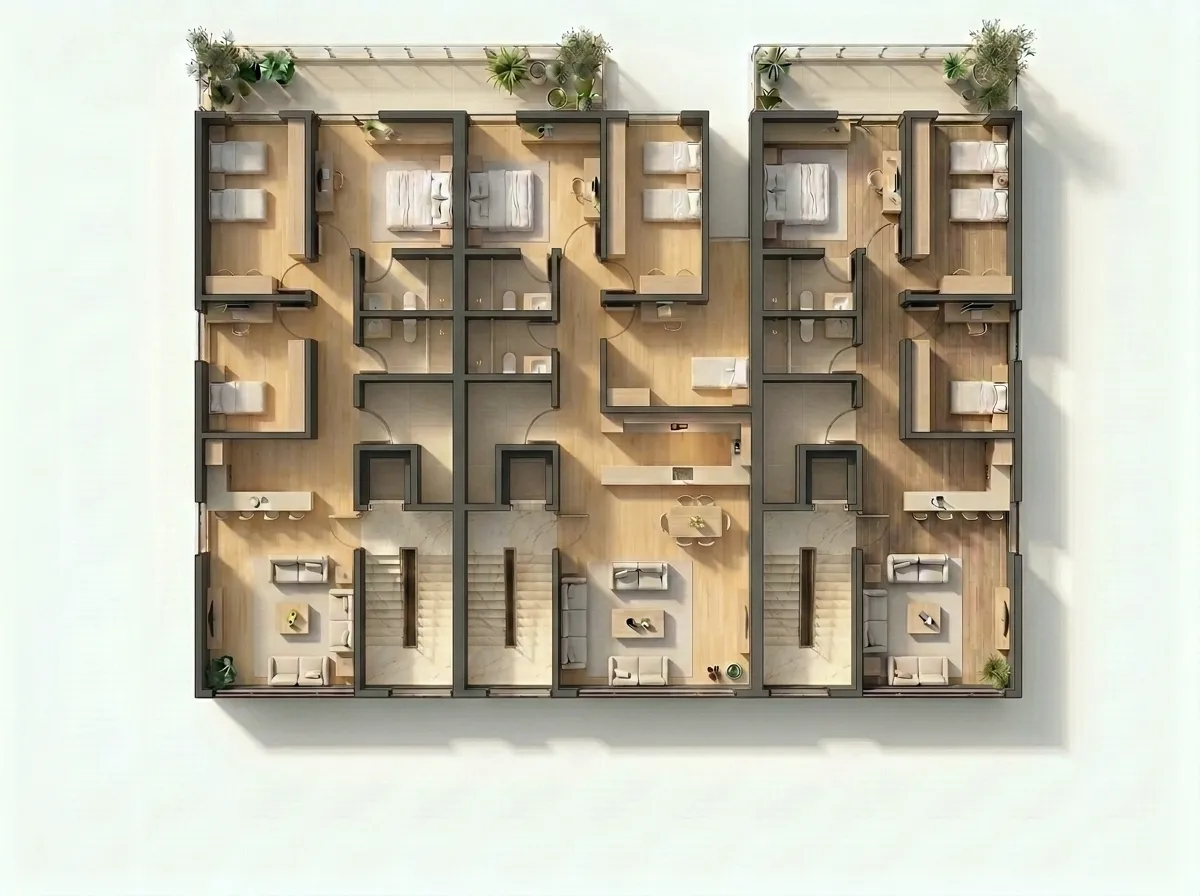
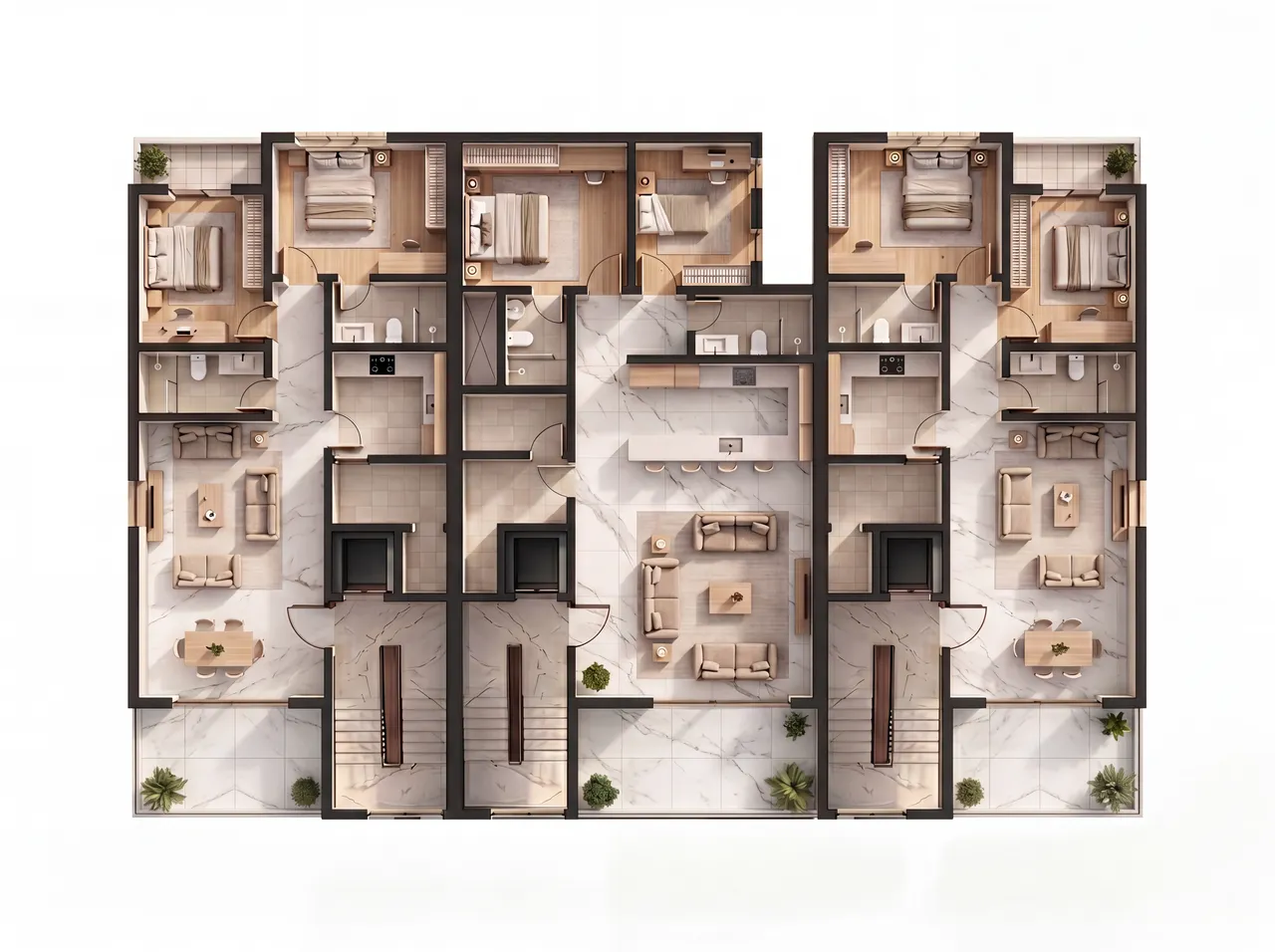
An attached image on its own is not an instruction. If you attach a plan and ask a question about it, you get an answer, not a surprise render. The agent only renders when you have actually asked for one.
Watching it think
While the agent works, you will sometimes see faint italic text above its reply. That is the model reasoning through your request, not its answer. It disappears as soon as the real reply starts. If you would rather ignore it, ignore it; nothing there needs acting on.
Who chooses quality and cost
You do. The row under the composer holds the model, the resolution, and the aspect ratio, and the chip on the right shows what the next render will cost in credits. The agent cannot change any of them.
This matters more than it might sound. The agent decides what to render; it never decides how much you spend. If you want a fast, cheap look while you explore an idea, set 1K and talk freely. When you have converged on something, raise it to 2K or 4K and ask for the same shot again.
Renders started by the agent cost exactly what the same render would cost from the control panel, and they count toward the same daily limits.
When to use which
Use the control panel when you already know the look you want. Picking Style, Lighting, and Time of Day from a list is faster than describing them, and it is repeatable across a set of images.
Use the agent when you are not sure yet, when the image needs something the chips do not cover, or when you want to iterate by talking. "Warmer, and lose the cars" is a faster correction loop than re-selecting five options.
Both write to the same canvas, so you can move between them freely on the same project.
Limits worth knowing
- The agent is on desktop for now.
- Free accounts get 20 agent messages a day. Paid plans are unlimited. Renders are charged and limited exactly as they are everywhere else.
- One conversation per project. Starting a new chat replaces the old one rather than keeping a list.
- It renders images. It does not yet edit a region, upscale, or make video from the chat; those live in the control panel.